Requesting a New Certificate
TrustLab provides a streamlined wizard to generate private SSL/TLS certificates for your internal infrastructure.
Prerequisites
Before starting, ensure you have:
- Active TrustLab account access.
- Root CA installed on your machine (to trust the generated certs).
1. Open Certificates Menu
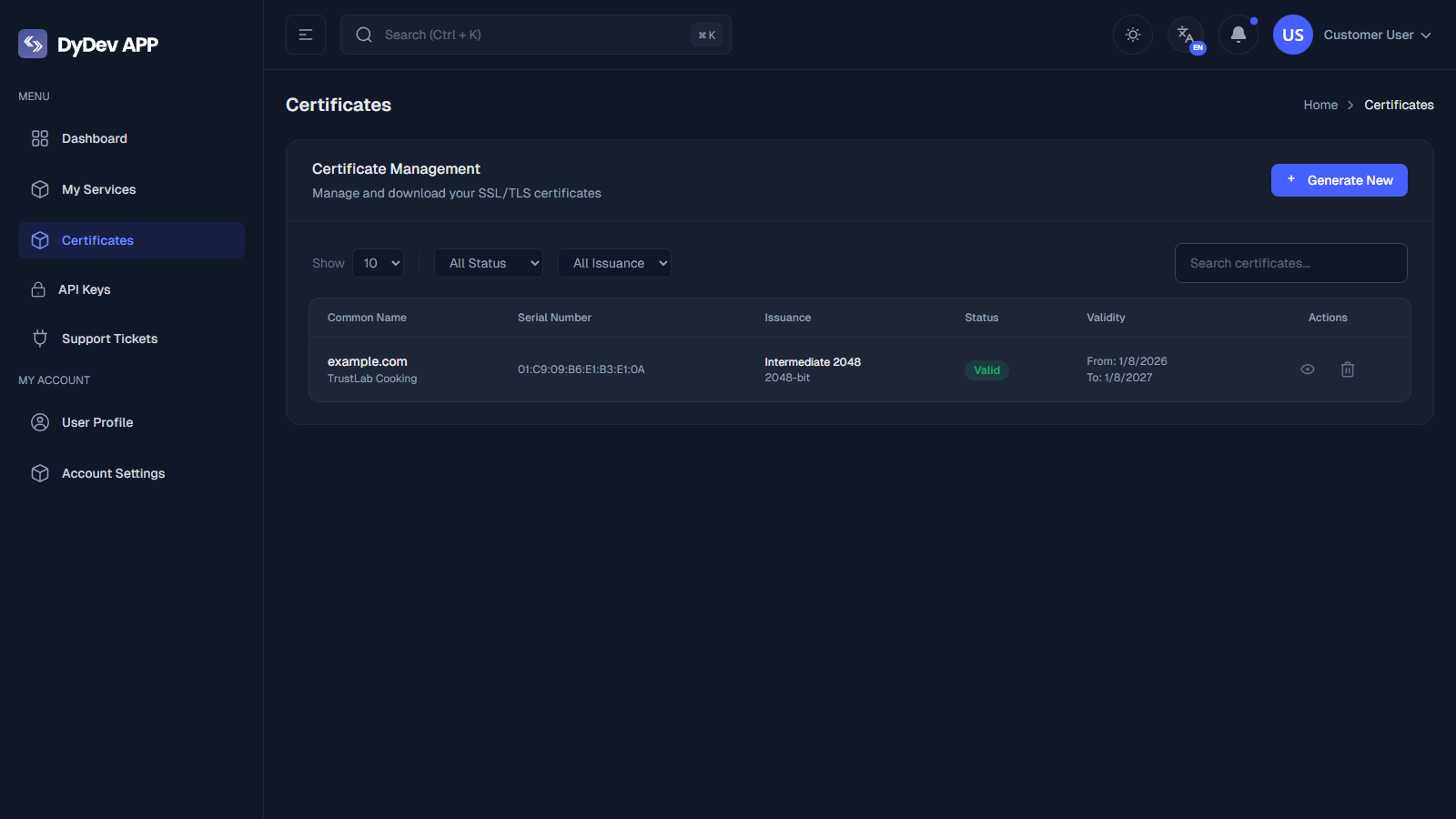
Navigate to the Certificates page. This view lists all your active and expired certificates. Click the "Generate New" (or "+") button to start.
2. Enter Domain Details (Default Mode)
By default, you only need to provide the Identity. The system will auto-fill the Organization & Location metadata.
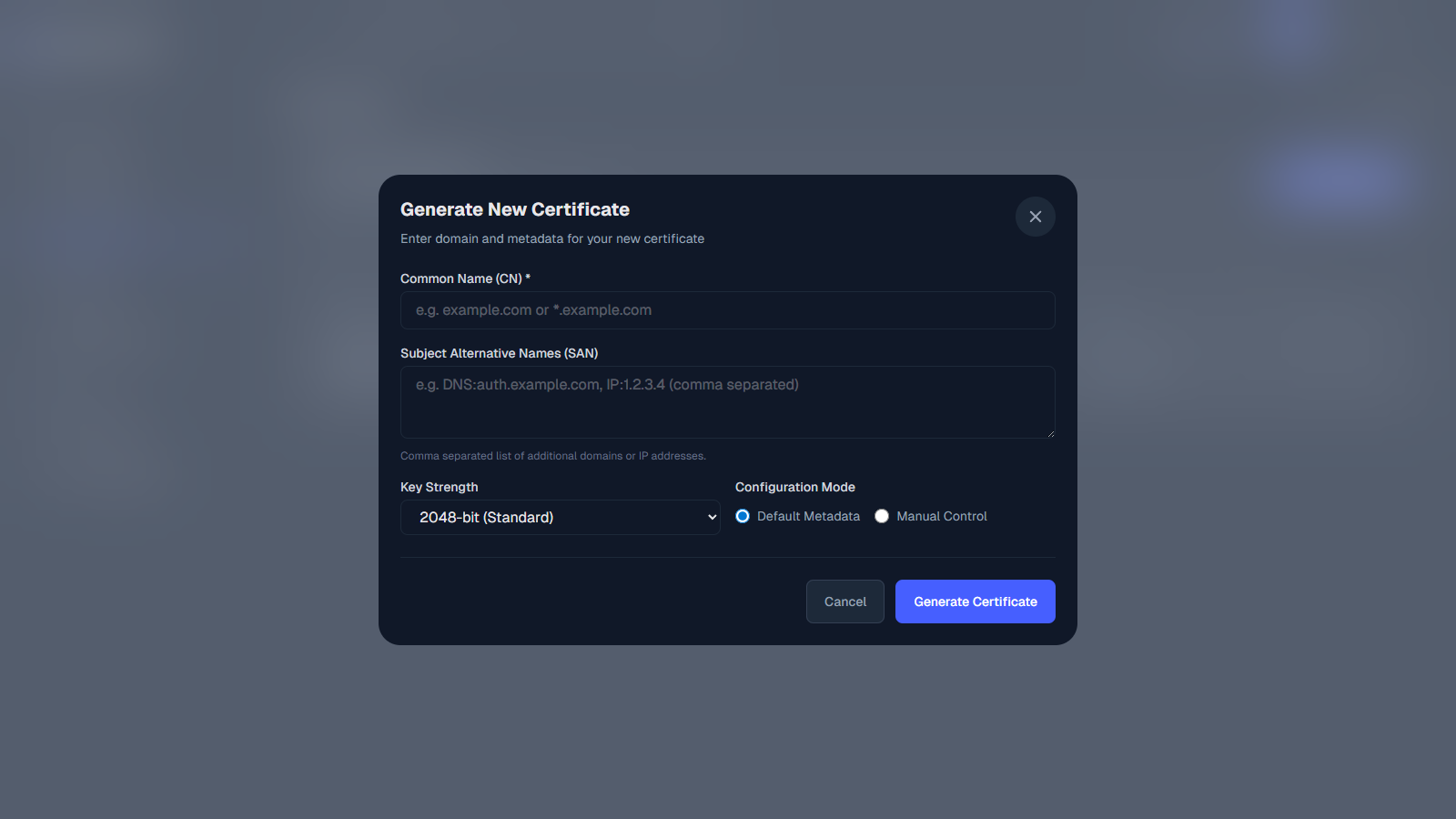
- Common Name (CN): The primary domain (e.g.,
app.internal). - SANs: Additional domains or IP addresses.
- Key Strength: Choose the encryption level.
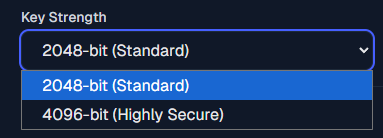
- 2048-bit: Industry standard, compatible with all devices.
- 4096-bit: Higher security, slightly more CPU intensive.
3. Customize CSR (Manual Control)
Toggle "Manual Control" if you need to override the default Identity fields (e.g., for a specific branch office or legal entity).
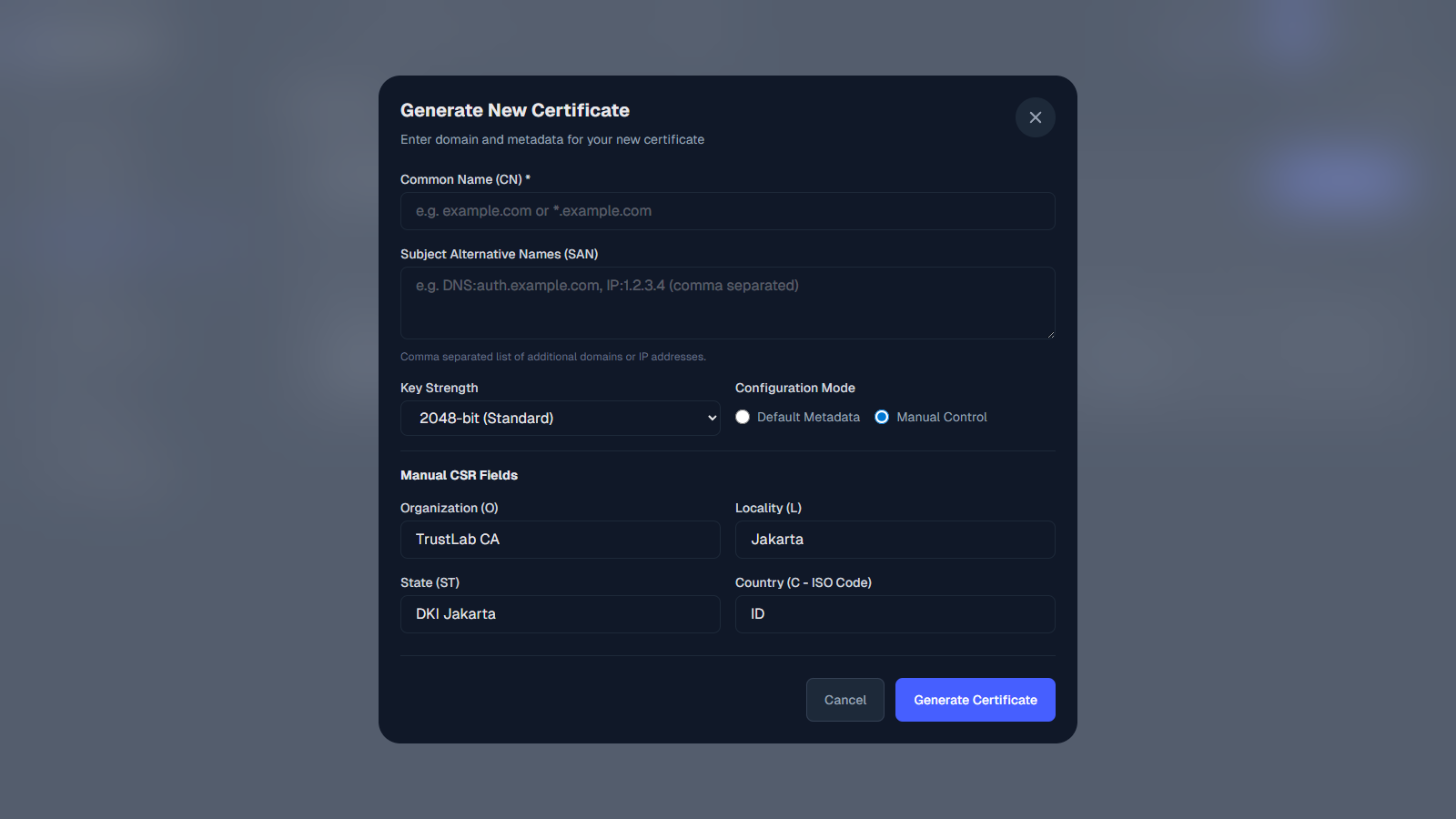
- Organization (O): Override the default company name.
- Locality (L) / State (ST): Set specific location data.
- Country (C): ISO Code.
4. Generate & Save
Click Generate.
- The Certificate (.pem) and Private Key (.key) will be generated.
- You can copy them immediately or access them later from the Certificate Details page.
Storage: Your Private Key is securely stored. You can view it anytime by clicking "View Details" on the certificate list.